Mobjects
A mobject is anything that you can show in a video. This page shows the kinds of mobjects, and how to change their color, size and angle.
Shapes
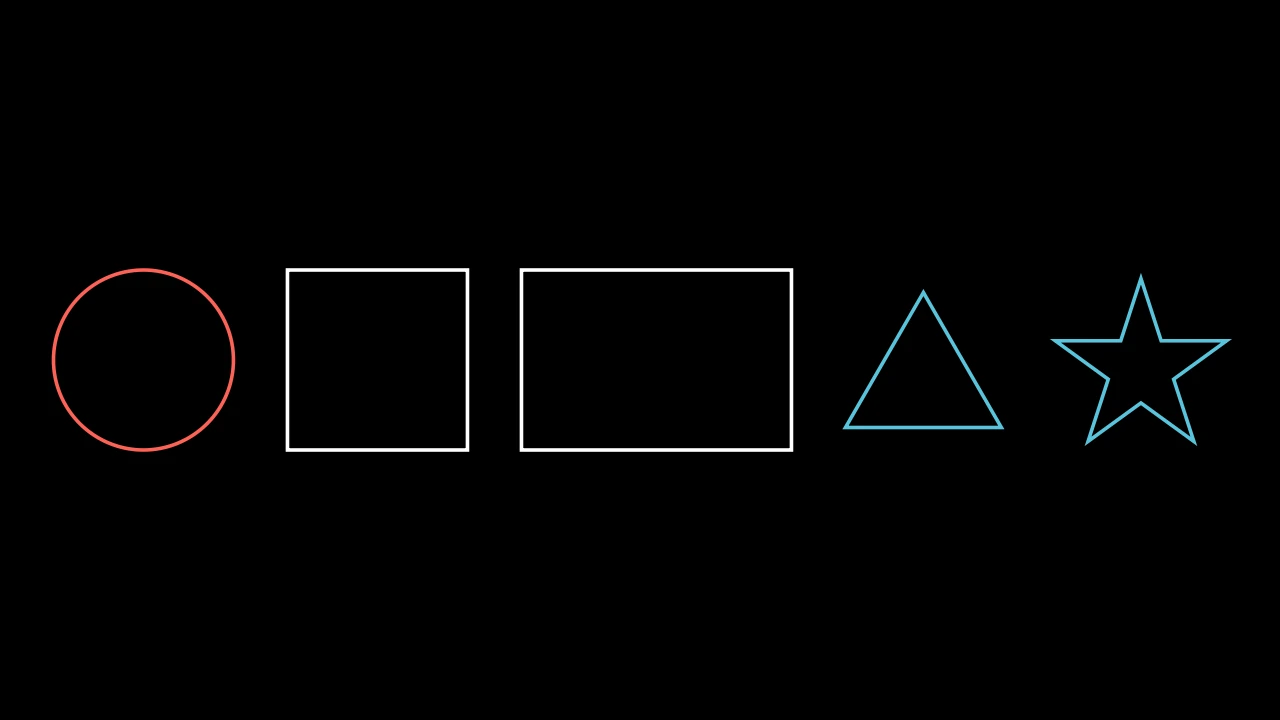
import manimgx as m


class Shapes(m.Scene):
    def construct(self) -> None:
        circle = m.Circle(radius=1)
        square = m.Square(side_length=2)
        rectangle = m.Rectangle(width=3, height=2)
        triangle = m.Triangle()
        star = m.Star()
        shapes = m.VGroup(circle, square, rectangle, triangle, star)
        shapes.arrange(m.RIGHT, buff=0.6)
        self.add(shapes)
Each shape takes its size when you make it: a circle its radius, a square its
side_length, a rectangle its width and height. Without them, a shape has a size of
its own: a circle's radius is 1, and a square's side is 2.
To make a shape of your own, give m.Polygon its corners:
m.Polygon([0, 0, 0], [3, 0, 0], [0, 2, 0]).
Lines, arrows and dots
A line goes from one point to another:
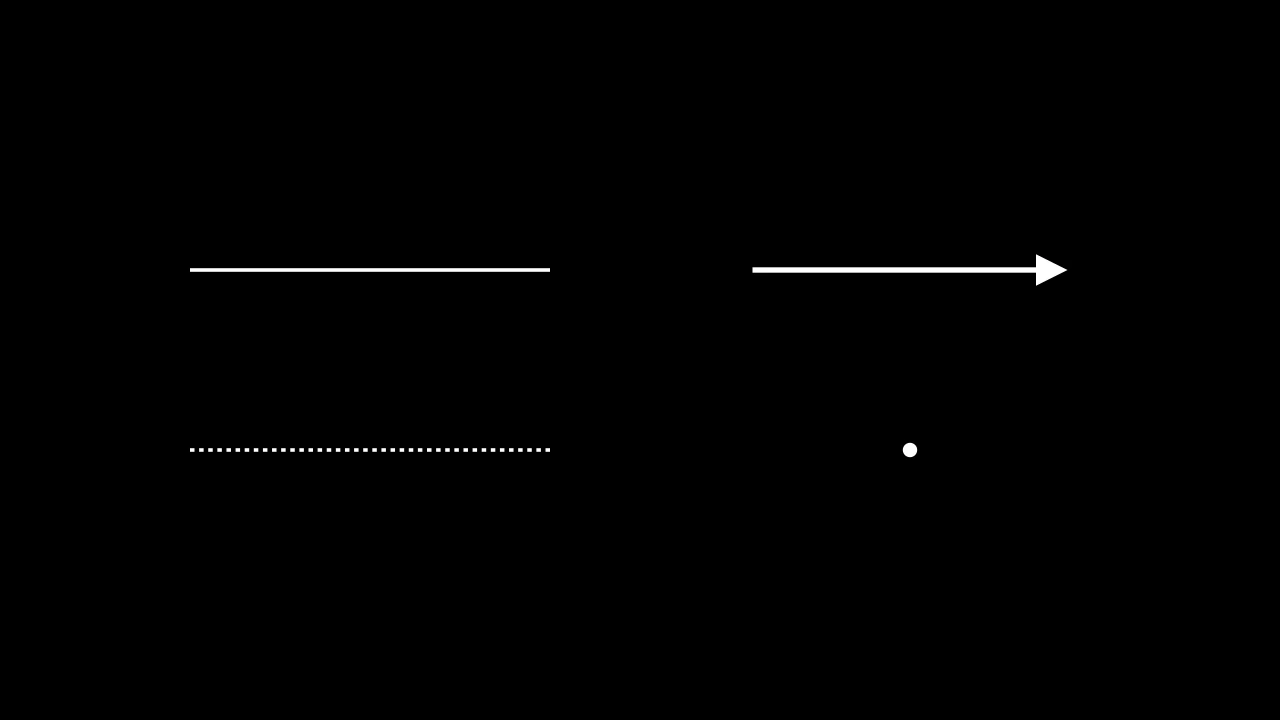
An arrow stops a little before its points, so that it doesn't cover what it points at.
To make it touch them, give buff=0. A dot is a small filled circle at a point.
Text and formulas
m.Text shows text, and m.MathTex shows a formula, written in LaTeX:
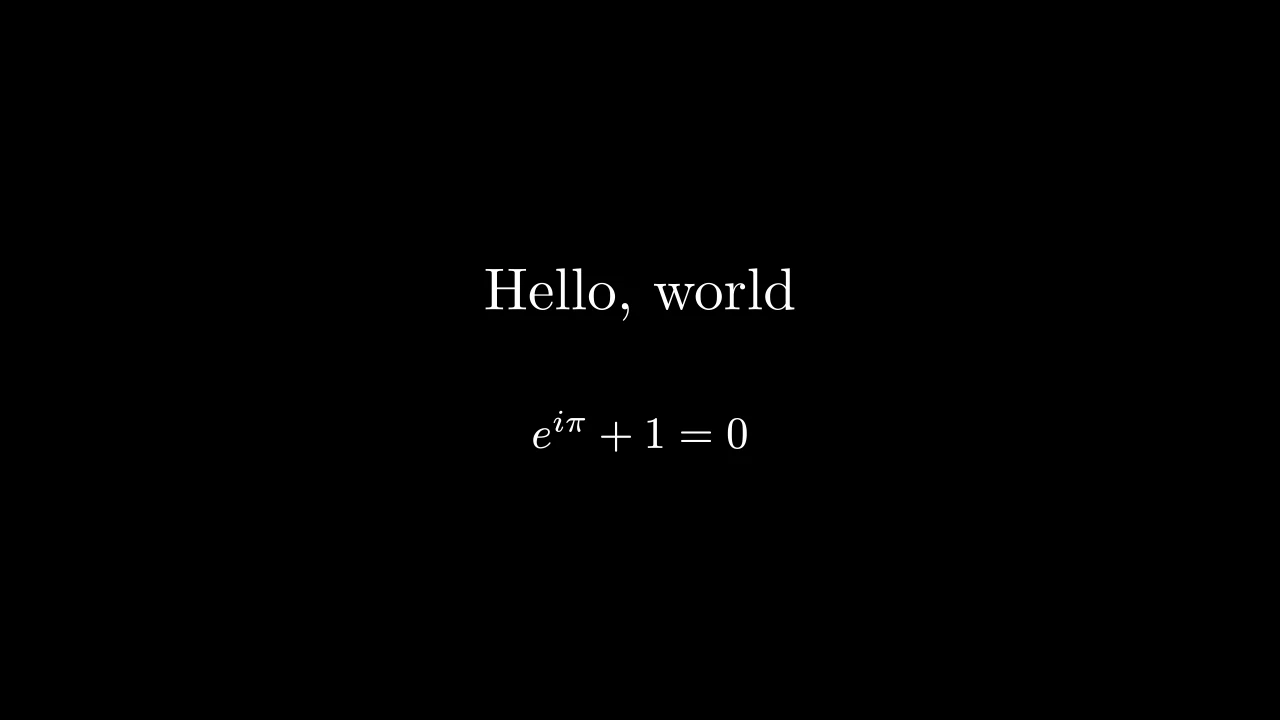
Write a formula in a raw string, r"...", so that Python keeps its backslashes.
Text and math shows more.
Color
Give a mobject its color when you make it:
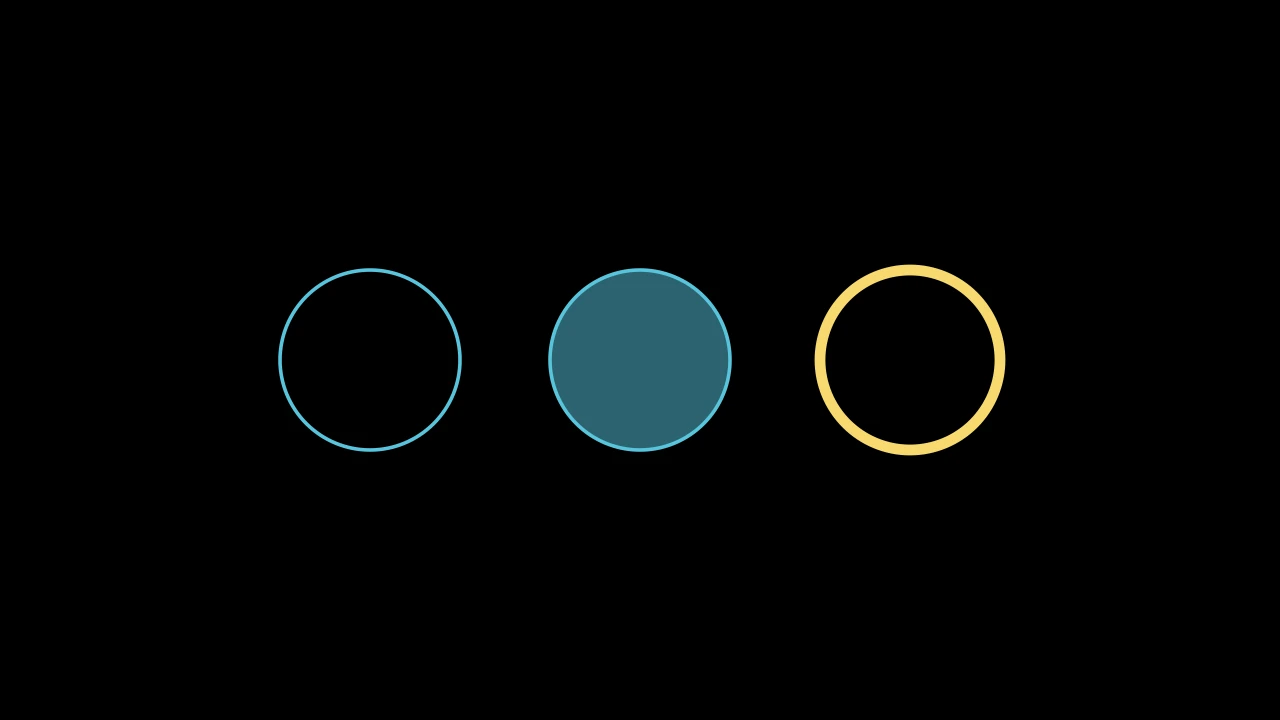
colorcolors the outline and the inside.fill_opacityfills the inside: 0 is empty, 1 is solid. Most shapes are empty unless you fill them.stroke_widthsets the width of the outline: 4 for most shapes, and 6 for an arrow, unless you give another.
manimgx has names for colors: m.WHITE, m.GREY, m.BLUE, m.TEAL, m.GREEN,
m.YELLOW, m.GOLD, m.ORANGE, m.RED, m.PINK, m.PURPLE and more. Most of them
also come in five shades: m.BLUE_A is the lightest blue, and m.BLUE_E the
darkest. You can also give a color as a hex code, such as "#58C4DD".
To change a color later, use set_color, set_fill or set_stroke:
circle.set_fill(m.RED, opacity=1).
Size and angle
scale multiplies the size of a mobject, and rotate turns it counterclockwise:
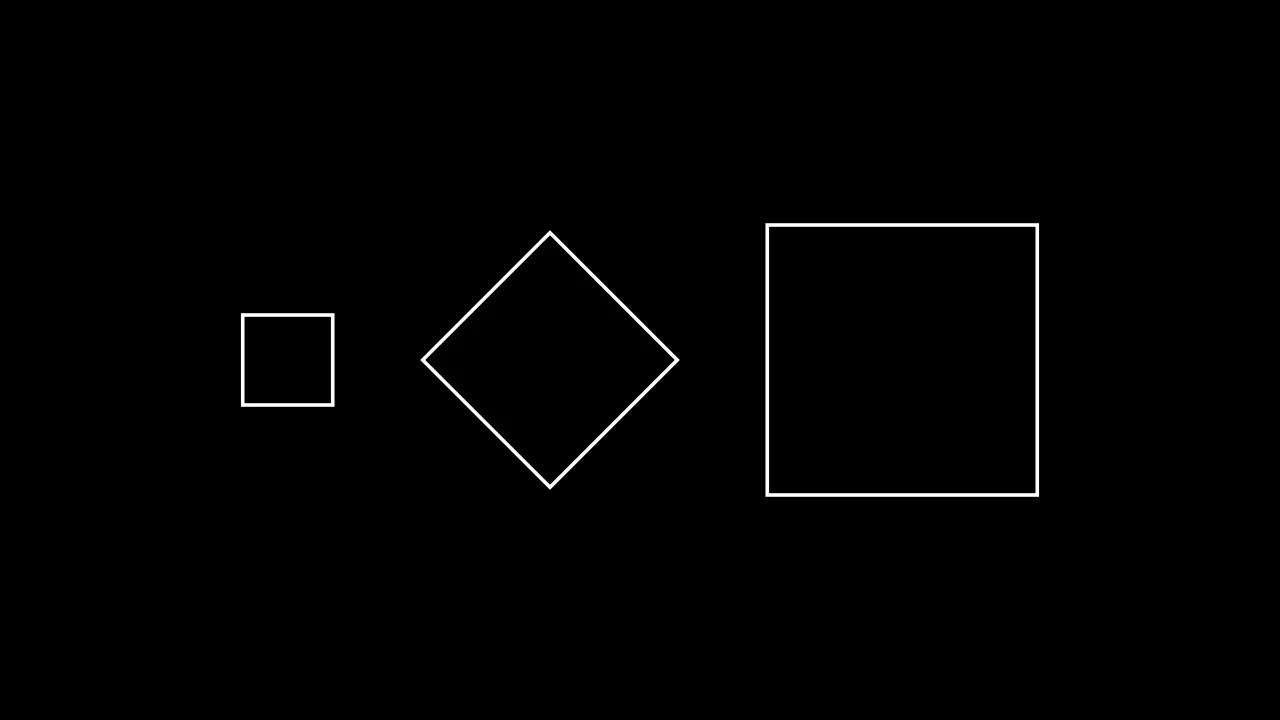
scale(2) makes a mobject twice as large, and scale(0.5) half as large. Its center
stays where it is. 45 * m.DEGREES is an angle of 45 degrees.
Groups
A group is a mobject made of other mobjects. When you move, scale, color or animate a
group, you do it to every mobject in it. group[0] is the first one, group[1] the
second.
shapes = m.VGroup(circle, square, triangle)
shapes.set_color(m.YELLOW)  # all three turn yellow
shapes[0].scale(2)  # the circle grows
What covers what
A mobject that you add later covers a mobject that you added before. To bring a
mobject to the front, give it a higher z-index: circle.set_z_index(1).
The reference shows every kind of mobject.
Next
Your mobjects are in place. Animations shows how to move and change them.